AI Re-Texturing allows you to use high-definition images captured by devices such as mobile phones or DSLR cameras to generate a finer textured model.
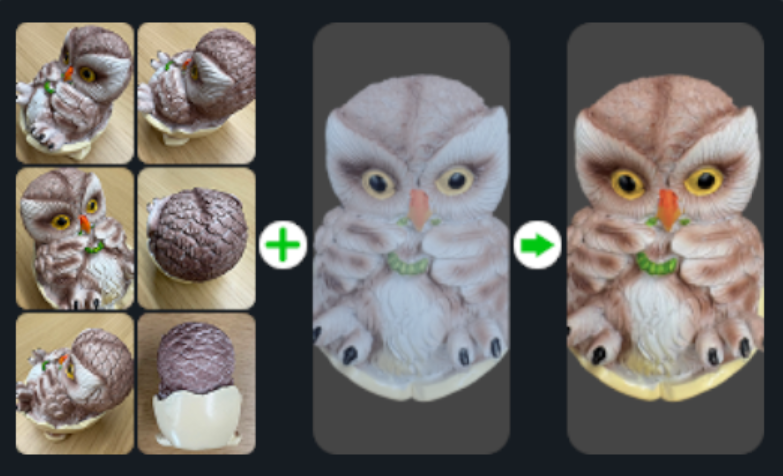
¶ Notes for AI Re-Texturing
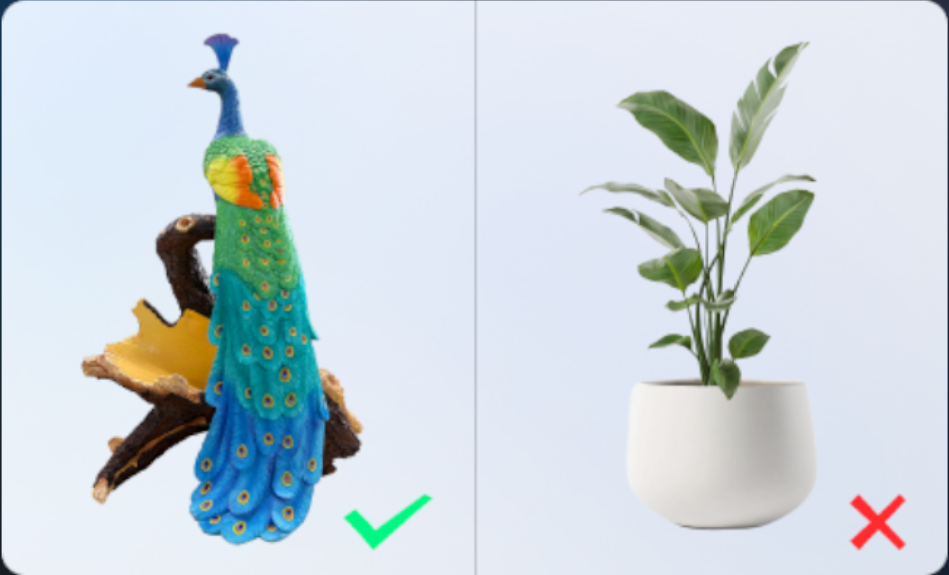
This function is not suitable for flexible objects (e.g., cloth, plants, etc.), as such materials are prone to subtle movements. It is recommended to apply this function to rigid objects with clear textures; objects with weak textures may yield unsatisfactory results.
¶ Step-by-Step Instructions
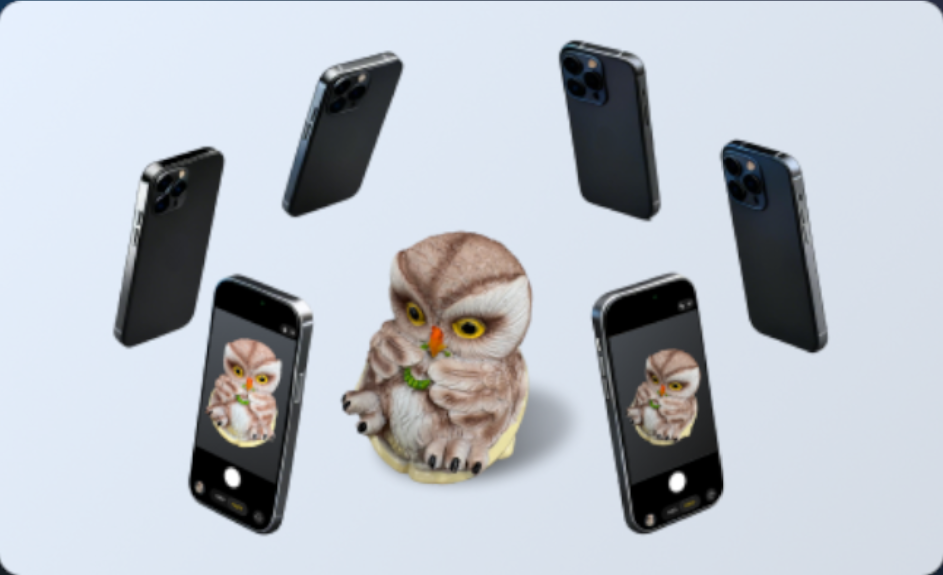
Perform 360° surround shots around the model that requires AI Re-Texturing. Insufficient number of images or range of angles may lead to poor results. Supported image formats: JPEG, JPG, PNG. Import the captured high-definition images into your computer.
In CrealityScan, open the project that requires AI Re-Texturing. Note: This feature can only be used on projects that have already undergone color mapping processing. Click Mesh Processing → AI Re-Texturing.
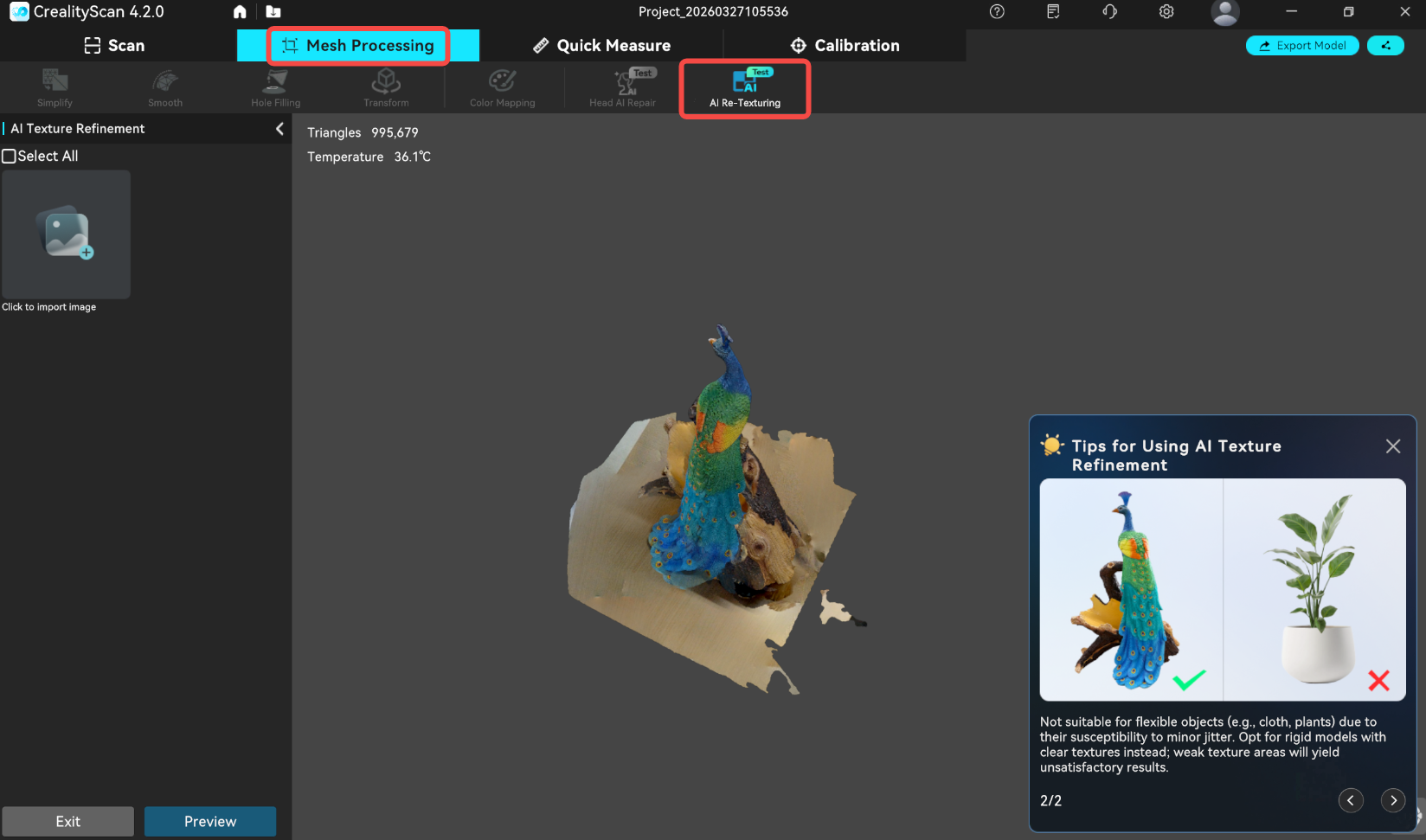
In the pop-up window, click to import images, browse to the folder where the images are stored and import them.
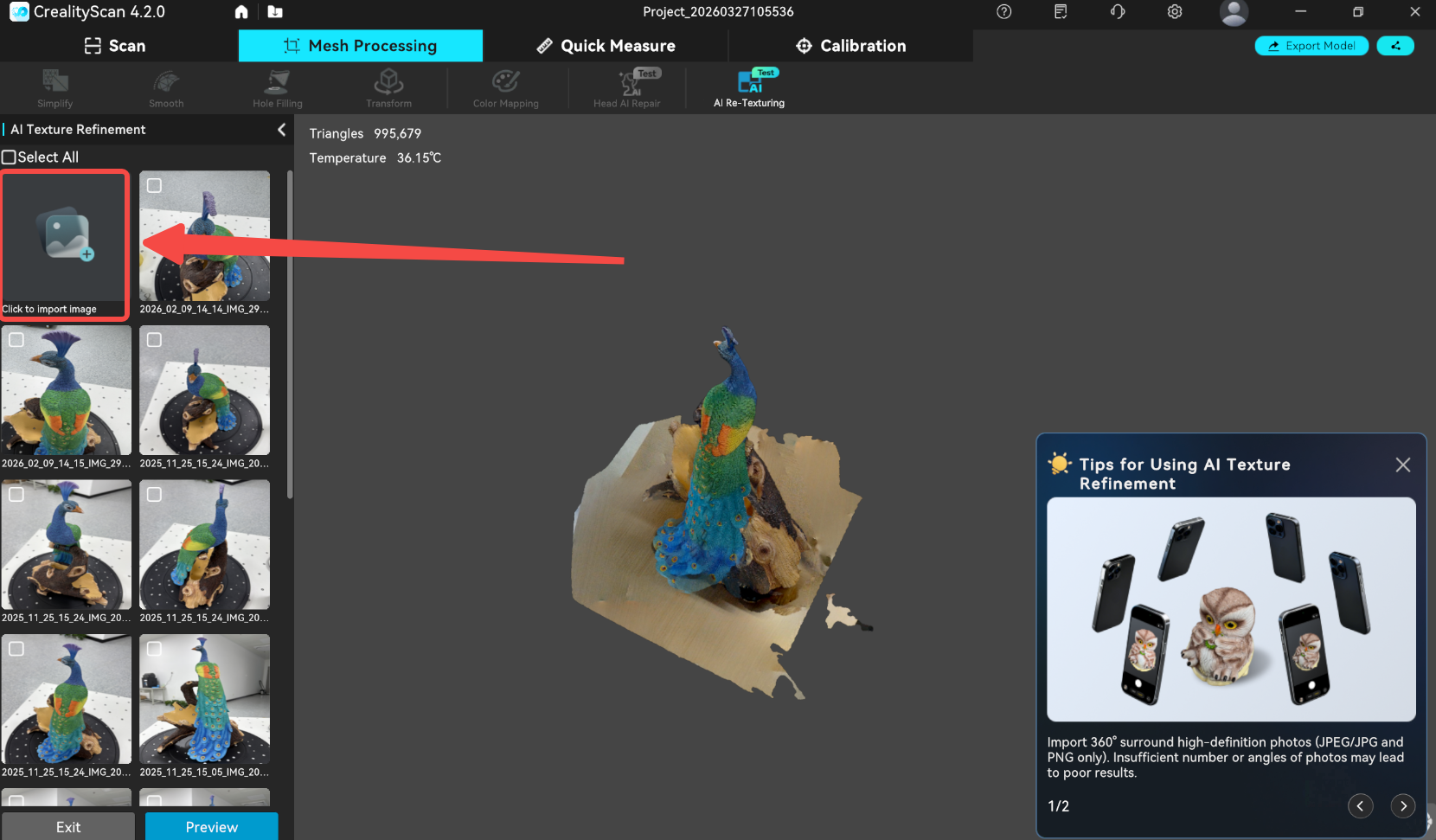
Click Preview and wait for the software to complete the AI Re-Texturing process.
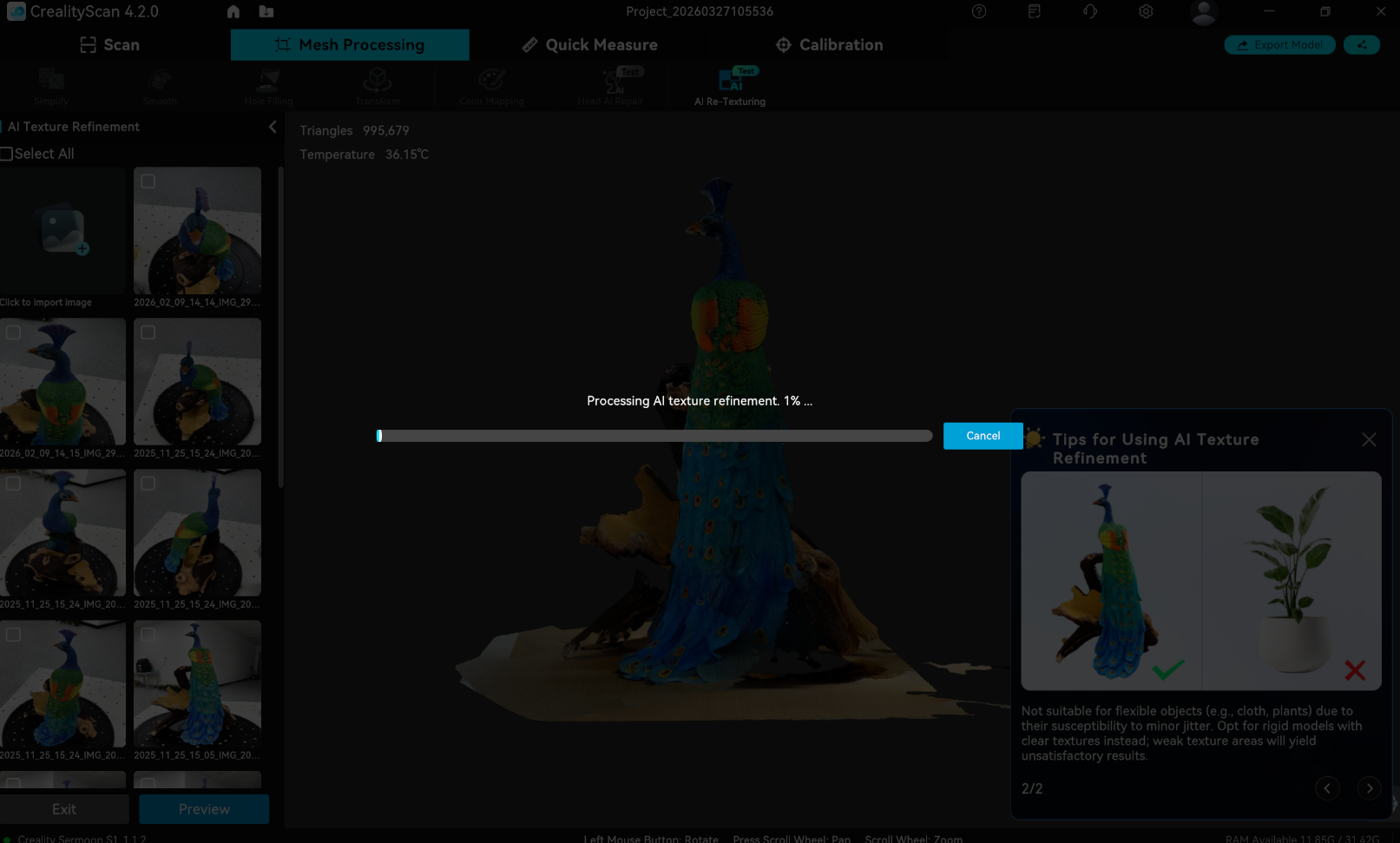
Once the process is complete, you can rotate the model to preview the effect.
| AI Re-Texturing Effect – Front | AI Re-Texturing Effect – Back |
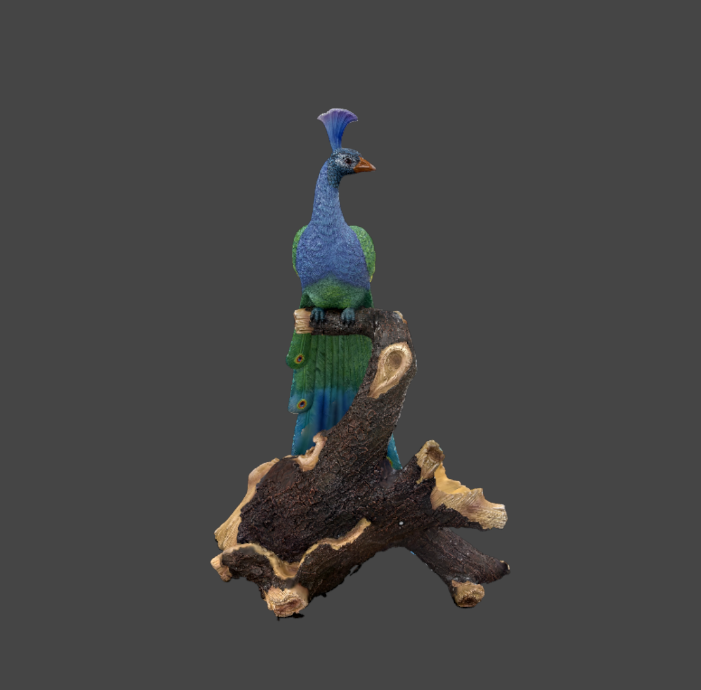 |
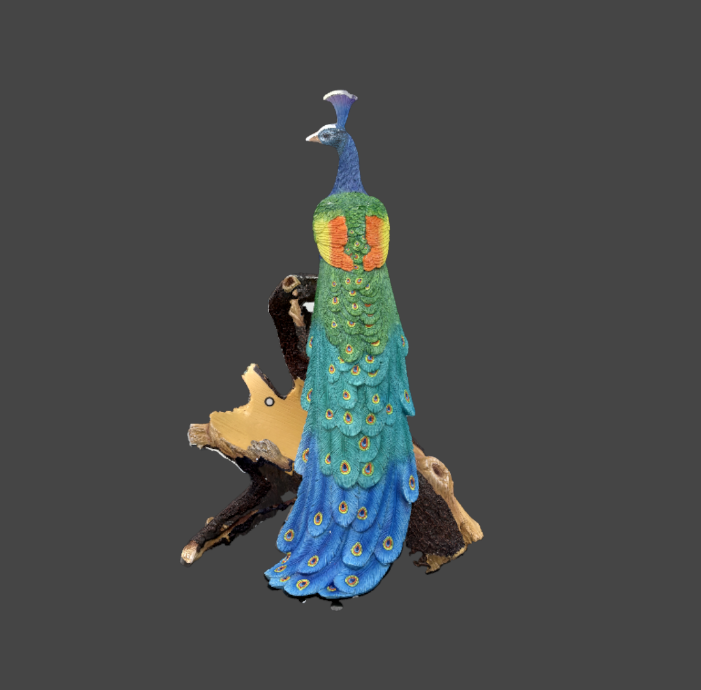 |