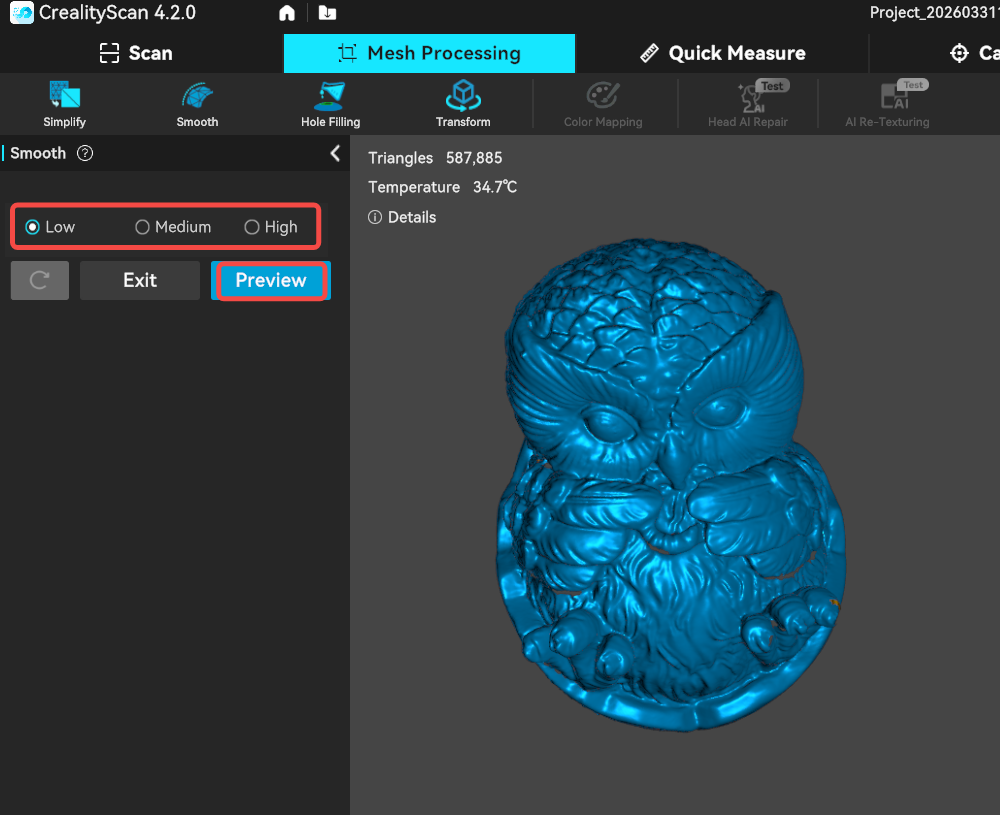
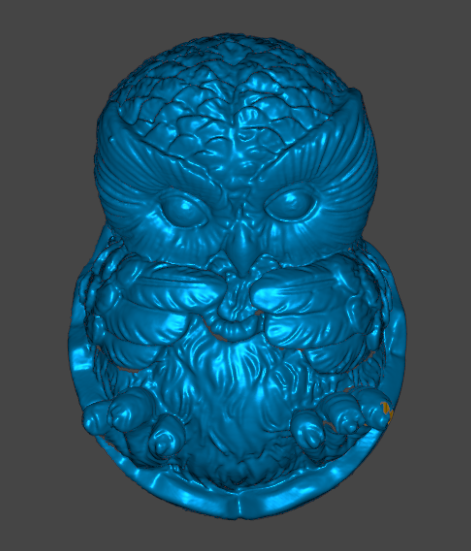
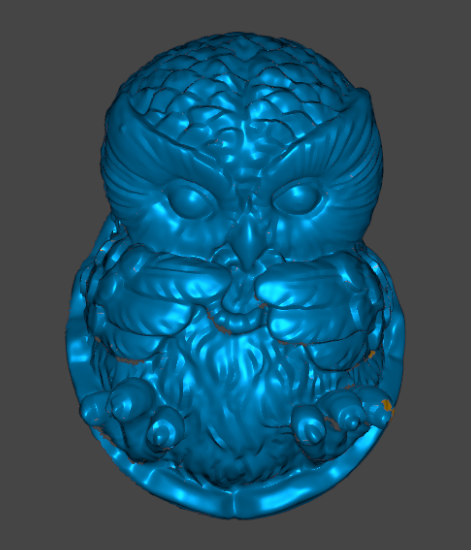
The smooth function removes noise and burrs from the model's surface, making rough surfaces smoother. The higher the smoothing level, the more noticeable the effect. This function can be applied multiple times to achieve the desired smoothing result.
| Before Smooth | After Smooth |
 |
 |
¶ Step-by-Step Instructions
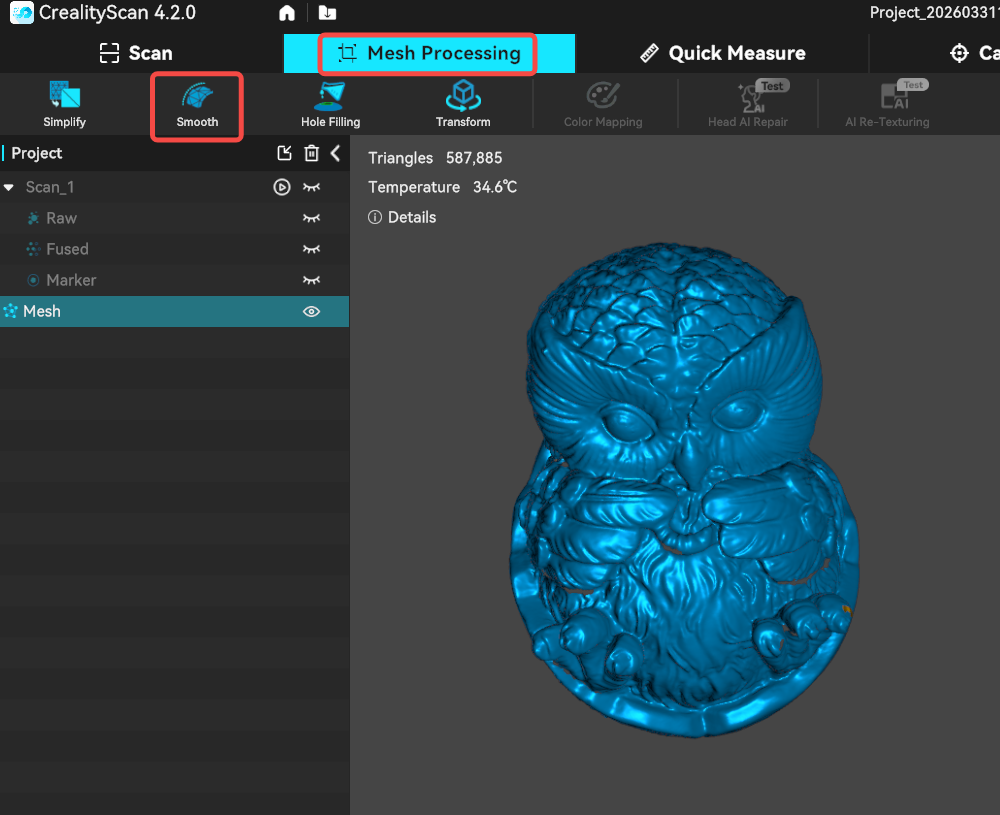
Select a meshed model, then click Mesh Processing → Smooth.
In the left side window, select a smooth level (Low / Medium / High), then click Preview to simulate the effect. If the result is satisfactory, click Apply.
If the smoothing does not meet expectations, click the Reset button to restore the default state, then adjust the smoothing level again.