¶ Tutorials
¶ 1. App Download
For iPhone:
Search for "CrealityScan" in the App Store and download the app.
For Android:
Search for "CrealityScan" on Google Play and download the app.
¶ 2. How to Enable Wireless Mirroring
Step 1: Device Setup
- Raptor Series&Otter (Raptor X includes a scan bridge): Use Scan Bridge (Purchase link: https://store.creality.com/products/creality-scan-bridge).
- Otter Lite (comes with Lite Bridge ): Use Lite Bridge.
- Ferret Series (Ferret Pro includes a wireless bridge; other models require a wireless bridge): Use Wireless Bridge (Purchase link: https://store.creality.com/products/upgrade-kit-for-wireless-scanning).
Step 2: Connect to Wi-Fi
(1) Insert the included network adapter into your computer’s USB port.
(Note: Otter/Otter Lite/Ferret series do NOT need the adapter—skip this step.)
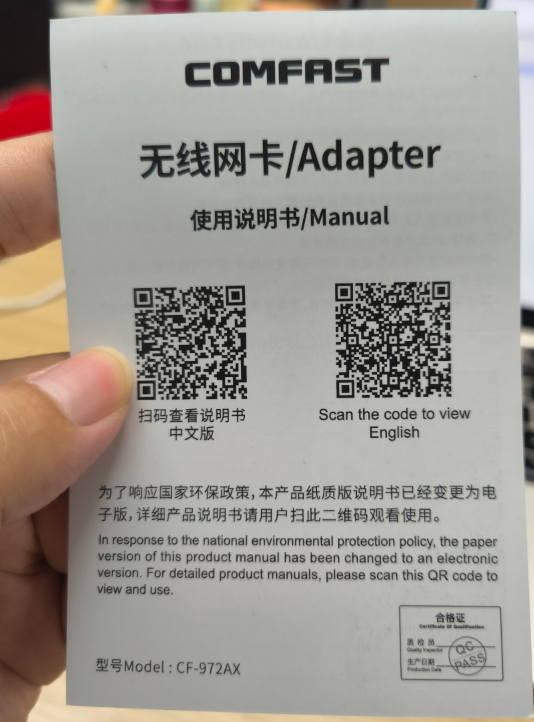
(2) Install the adapter driver using the provided instructions and activate it.
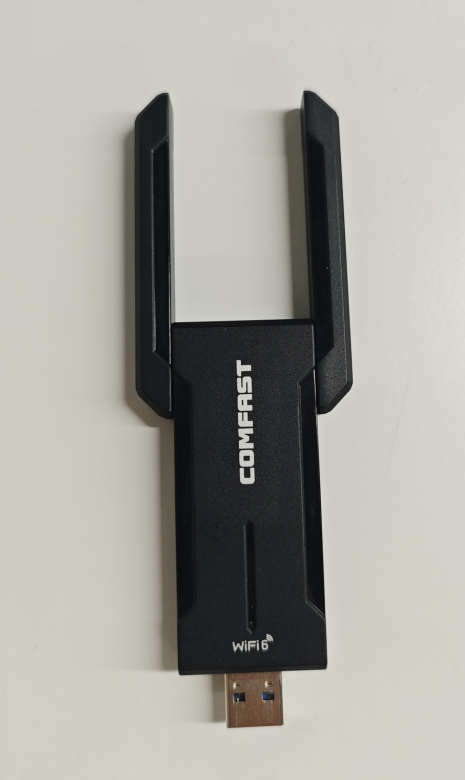
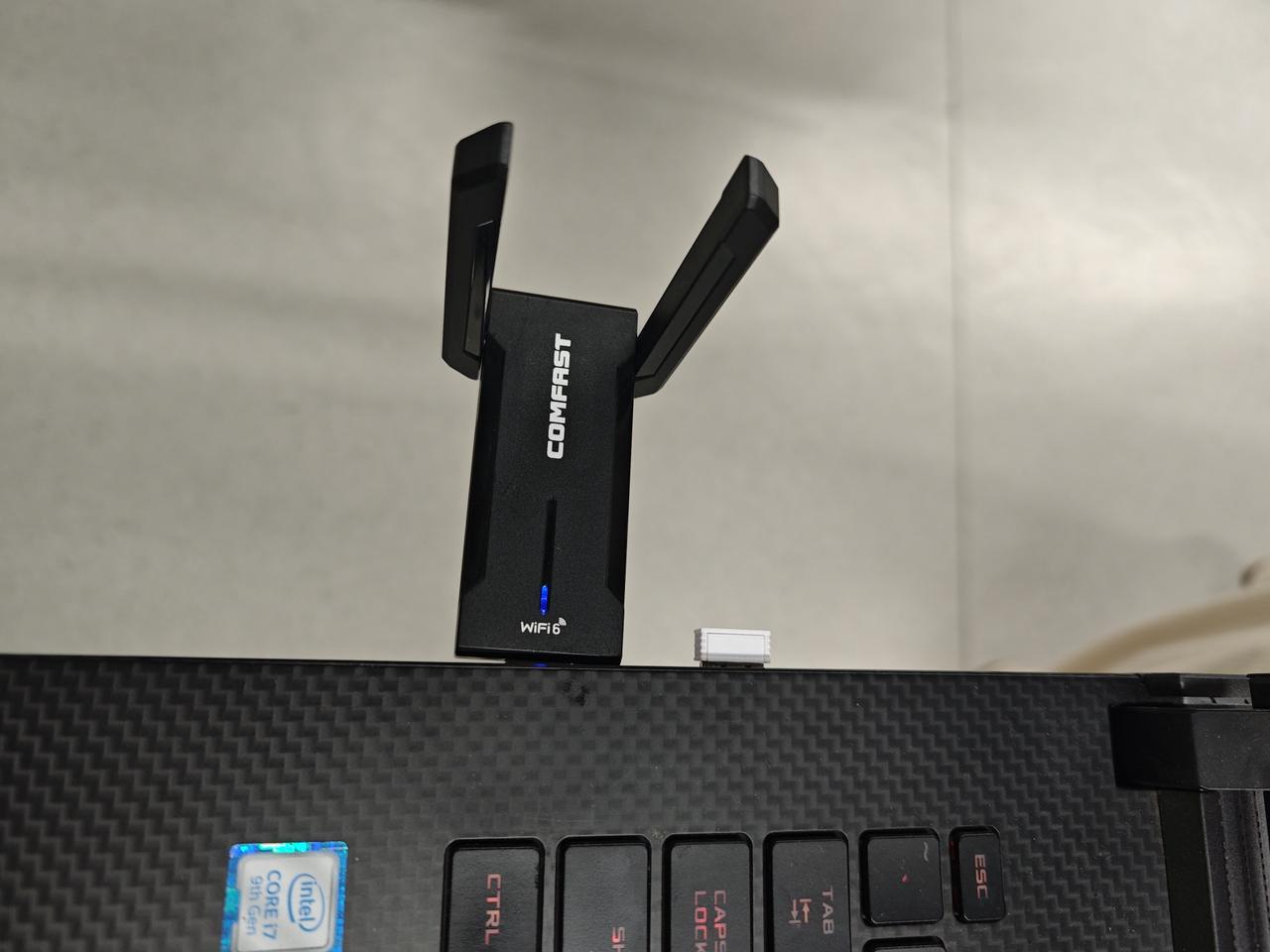
(3) Connect both your phone (as the left figure) and computer(as the right figure) to the bridges' Wi-Fi.
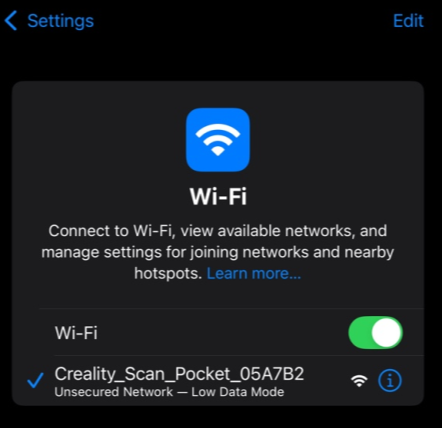
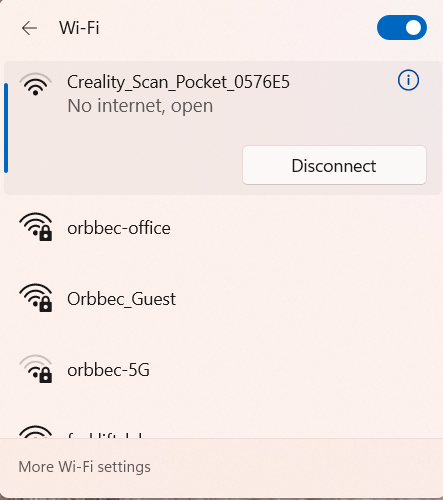
Wi-Fi names vary by handle:
Scan Bridge: Creality_Scan_Pocket_XXXXXX
Lite Bridge: Lite Bridge-XXXXXX
Wireless Bridge: Ferret_XXXXXX
Step 3: Scan the QR Code for Mirroring
(1) Open the CrealityScan app, tap the Scan icon in the top-right corner.
Note: The "Wireless Display" option will only work if the handle is connected to the scanner.
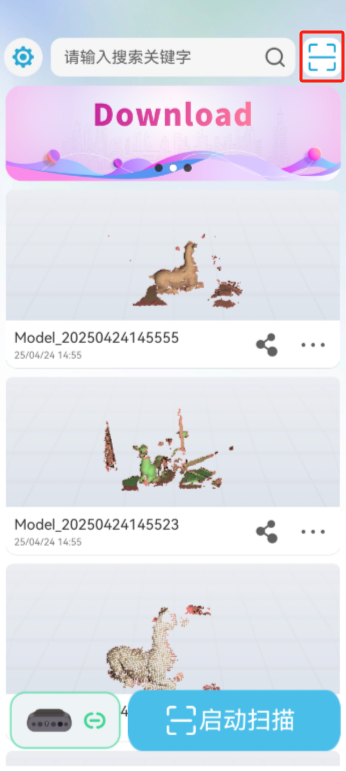
(2) San the mirroring QR code on the PC software.
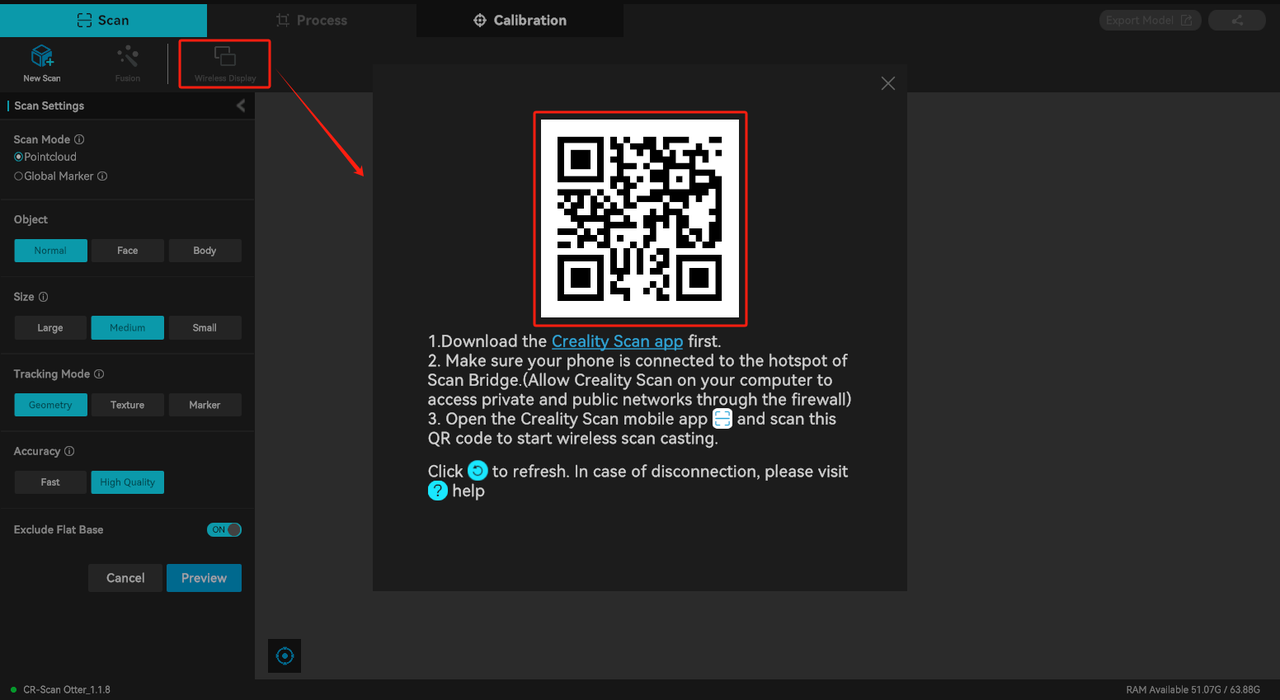
The guide below is for mobile software version V3.0.0 and above:
- Open the mobile APP and click "Settings".
.png)
- Scroll down the menu to find the "Cast" function.
.png)
- On the PC software, click "Mobile Connection" in the lower left corner.
.png)
- Use your mobile phone to scan the QR code displayed on the PC software.
.png)
¶ Troubleshooting and Solutions for Failed Wireless Screen Mirroring
If your wireless screen mirroring fails, check the following:
① Check if the firewall is enabled. If yes, turn it off.
② Check if VPN is active. If yes, turn it off.
③ Check if virtual network adapter is enabled. If yes, disable it.
④ If you're connected to wired network and the scan bridge hotspot (but the IP is using wired network actually), switch to the the scan bridge hotspot.
Note
For connecting the scan bridge hotspot, the QR code scan result should start with 192.168.
If the QR code scan result doesn't start with 192.168, switch to wired network first, then manually disconnect it and reconnect to the scan bridge's hotspot.